API.Bible

api.bible

API.Bible is a REST-based API (Application Programming Interface) with a direct integration to the DBL content library. This empowers any developer to include Scripture content and text anywhere in their website or application.

API.Bible provides a unified format to access multiple versions and translations. This allows developers to focus on building their apps instead of doing text conversions.

Learn more about API.Bible by going to https://api.bible.


How to integrate DBL with API.Bible (New version)

  1. Create an account at both API.Bible and DBL (Digital Bible Library).
  2. In your DBL account, create a DBL API Key. See the article Add and Manage API Keys for instructions to find your key.
  3. Email support@api.bible your DBL API key and request adding it to your API.Bible app settings.
  4. After the key is added, your API.Bible app will be able to access all the DBL content items that you have permission to use. (NOTE: Open access content is available to all DBL members, while Controlled access content is only available to organizations.)

How to integrate DBL with API.Bible (Legacy version)

Here is a general overview:

  1. Create an account at both API.Bible and DBL (Digital Bible Library).
  2. In your DBL account, copy the API Key from your profile. See the article Add and Manage API Keys for instructions to find your key.
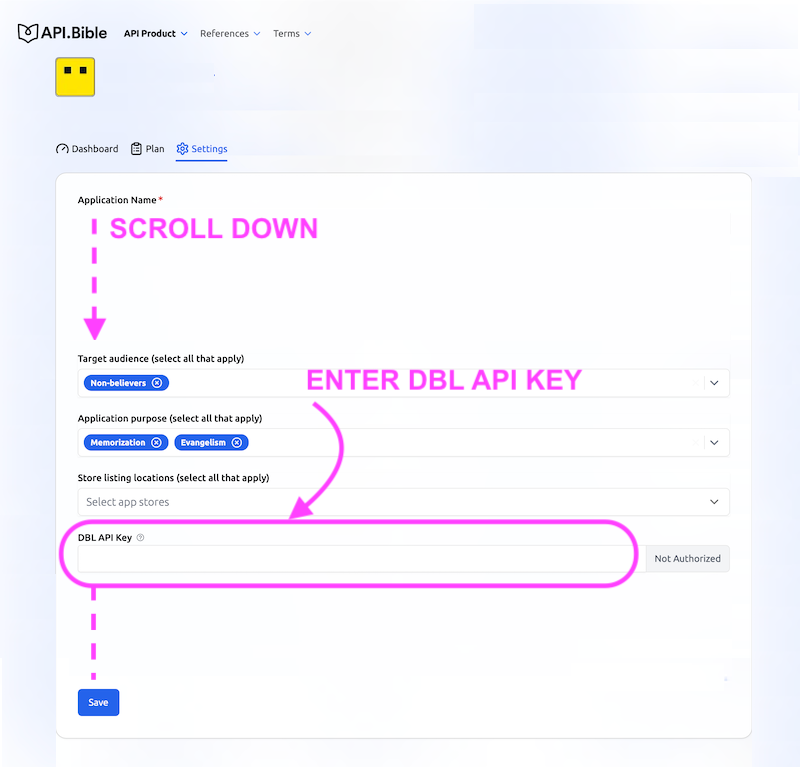
  3. Enter your DBL API Key into your API.Bible’s app settings to integrate.
  4. Your API.Bible app will now be able to access all the DBL content items for which you have permission to use.

Detailed Instructions

This is the step-by-step process to access DBL content in API.Bible (Legacy version):

  1. Create an account in API.Bible and login
    1. Create a new app (notice the form field for DBL token)
  2. Create a new account in DBL (Digital Bible Library) at library.bible/signup
  3. After your account is activated, you can do the following:
    1. Browse content library to find content
    2. Create a DBL API Key
    3. Go to your API.Bible app admin page, click the Edit icon, and copy/paste the DBL API Key into the corresponding field
  4. Click the 'View' link next to the item you'd like to see.
    1. The content summary will be shown. Click on the License tab under the content title (not in the top navigation) to see if the content is available as Open access or Controlled access. Open access content is available to all DBL members.
  5. NOTE: Controlled access content is only available to organizations. To request licensing of Controlled Access content, you must Create an Organization and Apply to be a Distributor.
    1. To start the licensing process, scroll down to Request Agreement (see How to Get a License)
    2. After your request is approved and the agreement activated, your API.Bible app will be able to access DBL content that you have permission to use.
Did this answer your question? Thanks for the feedback There was a problem submitting your feedback. Please try again later.